Preserve the original motion, camera movement, and timing while recreating the characters and visuals with your references.

Tip: one person per photo gives the most reliable swap.

Resolution

Genjutsu AI: Recast Any Video With Your Own Characters

Genjutsu AI is an AI video editing tool that transforms existing footage using reference images. Genjutsu AI keeps the original motion and camera movement and changes the characters, outfits, or products. You pay with one-time credit packs, not a monthly plan.
  • No subscription
  • Credits never expire
  • 480P to 1080P
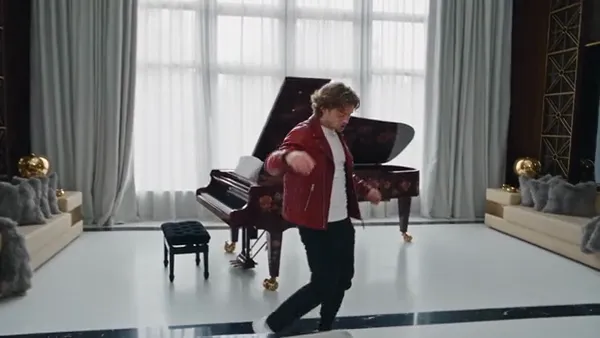
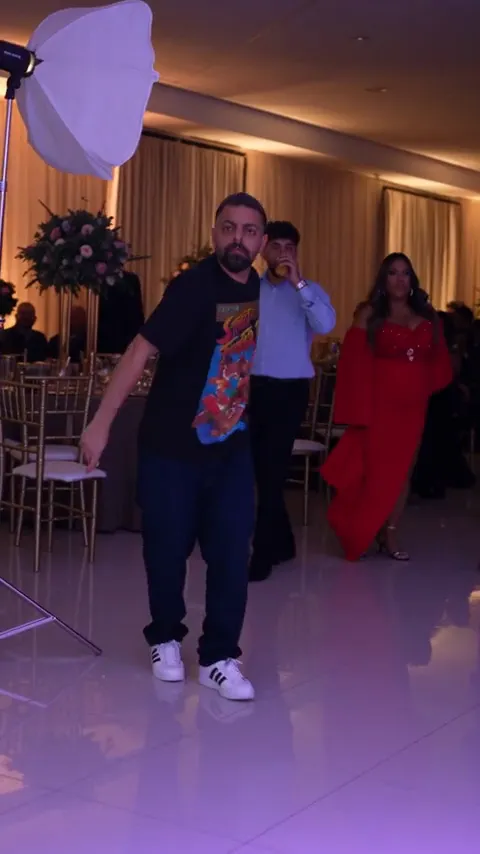
  • Use one character photo to follow a dancer through a grand living room. A full-body reference works best for the gliding steps and turns.
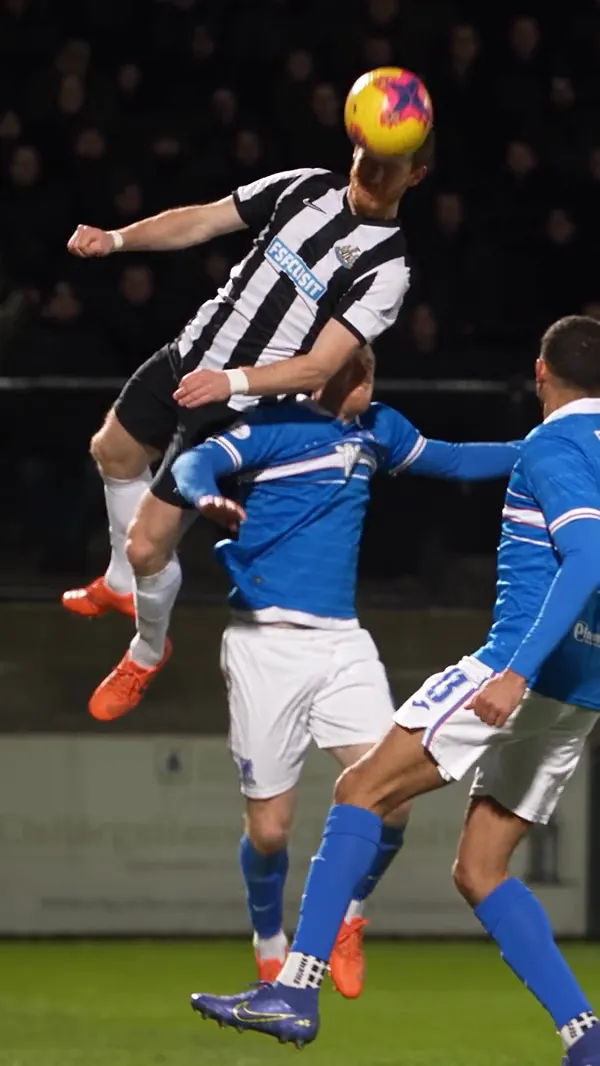
  • Put a character into the jumping player’s place and keep the original defender, ball contact and slow-motion landing. Use a reference with a clear face and outfit.
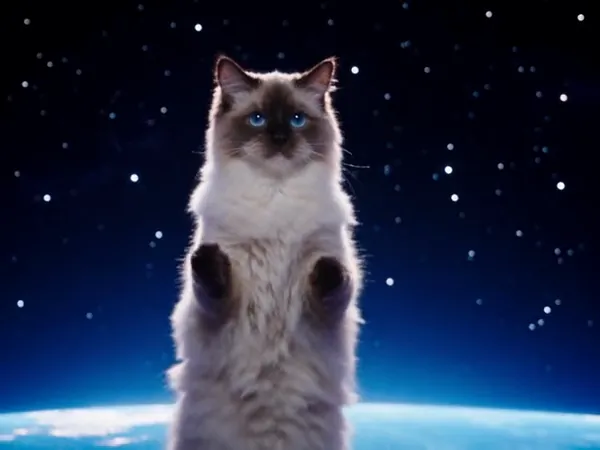
  • Use a cat photo to recreate a dance across changing cosmic scenes. Choose a reference that clearly shows the fur pattern and ears.
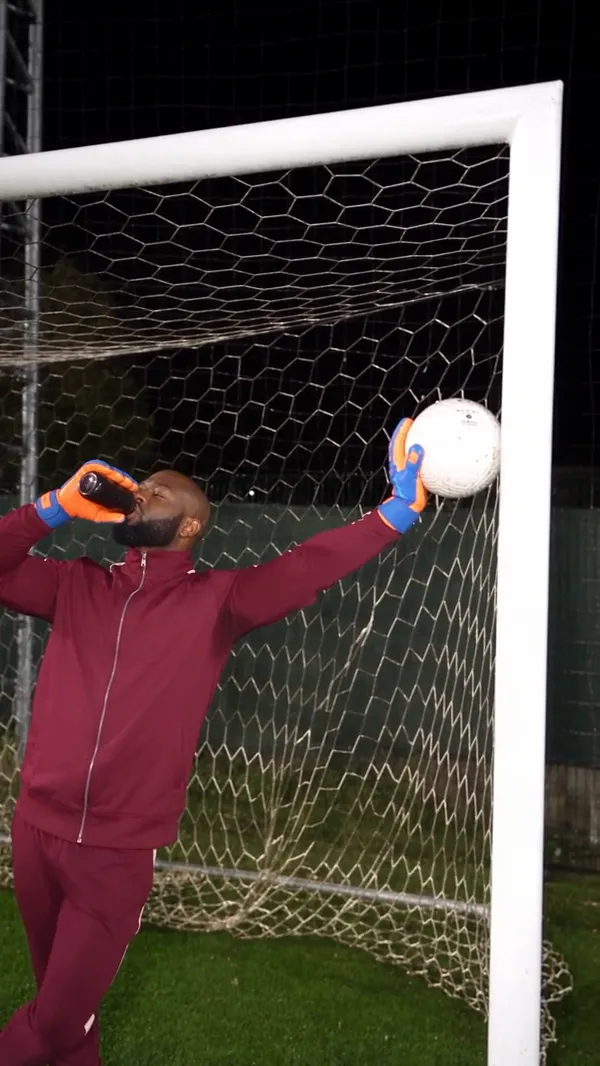
  • Recast both sides of a football trick shot. Use the first reference for the kicker and the second for the goalkeeper on the crossbar.
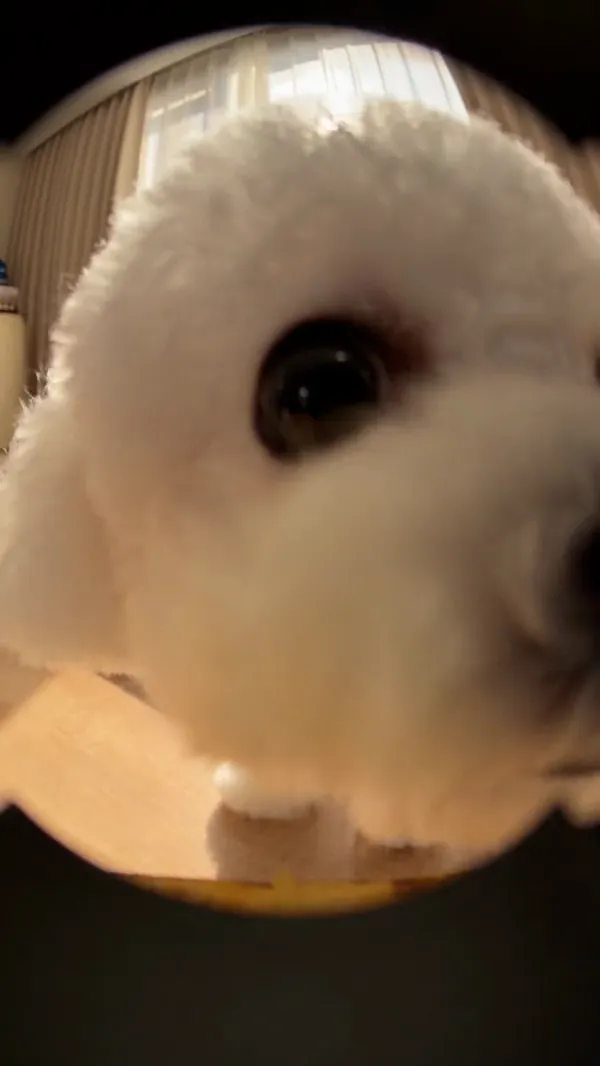
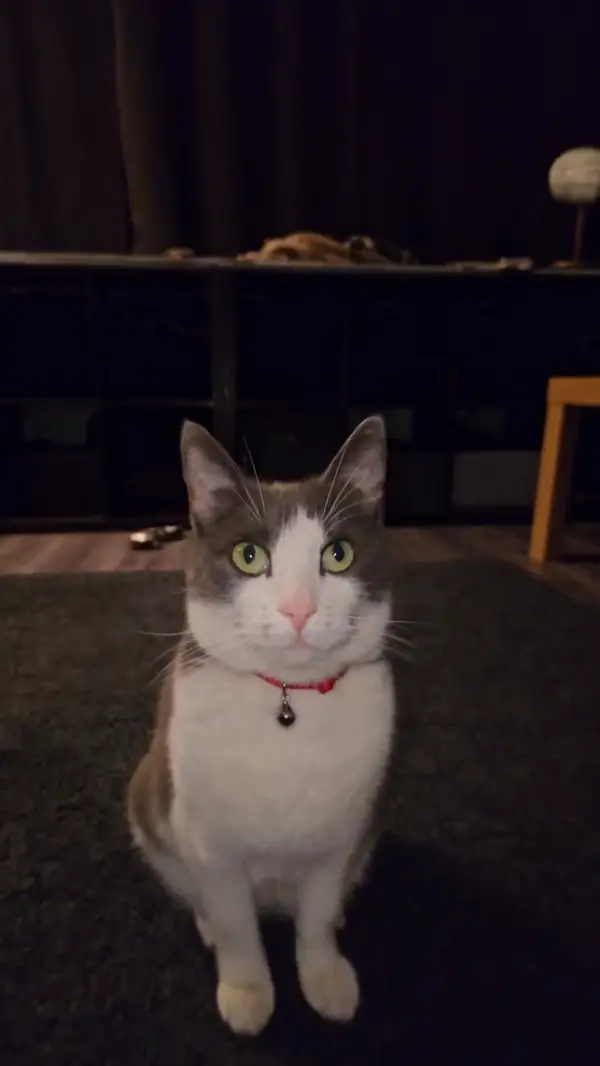
  • Use a pet photo to recreate a curious approach to a peephole camera. Choose a clear front-facing reference for the close-up.
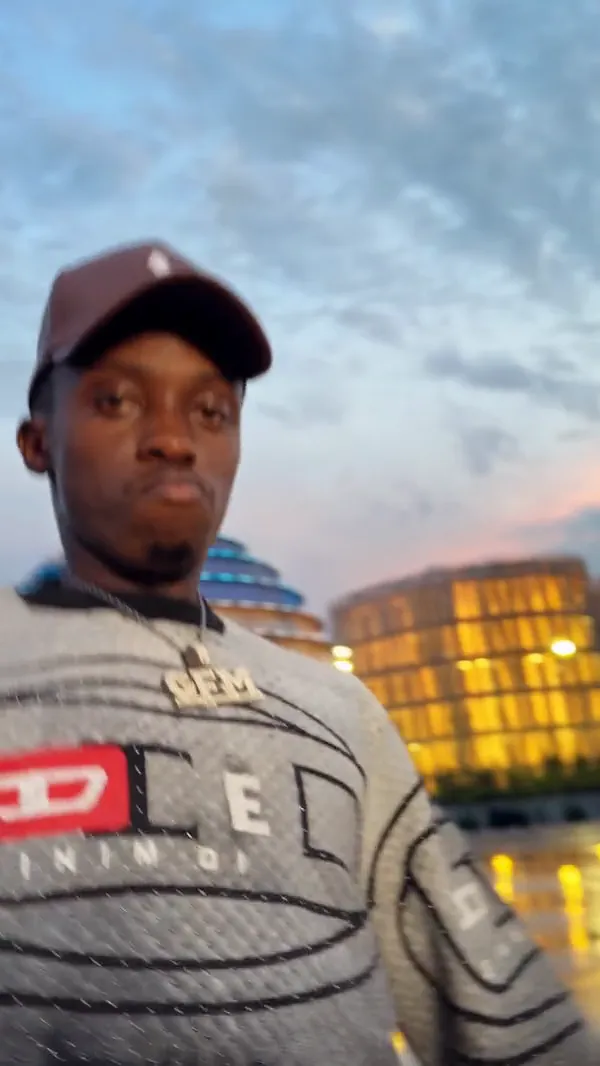
  • Recast a high-energy dance across outdoor and indoor scenes, using ordered portraits and location references.
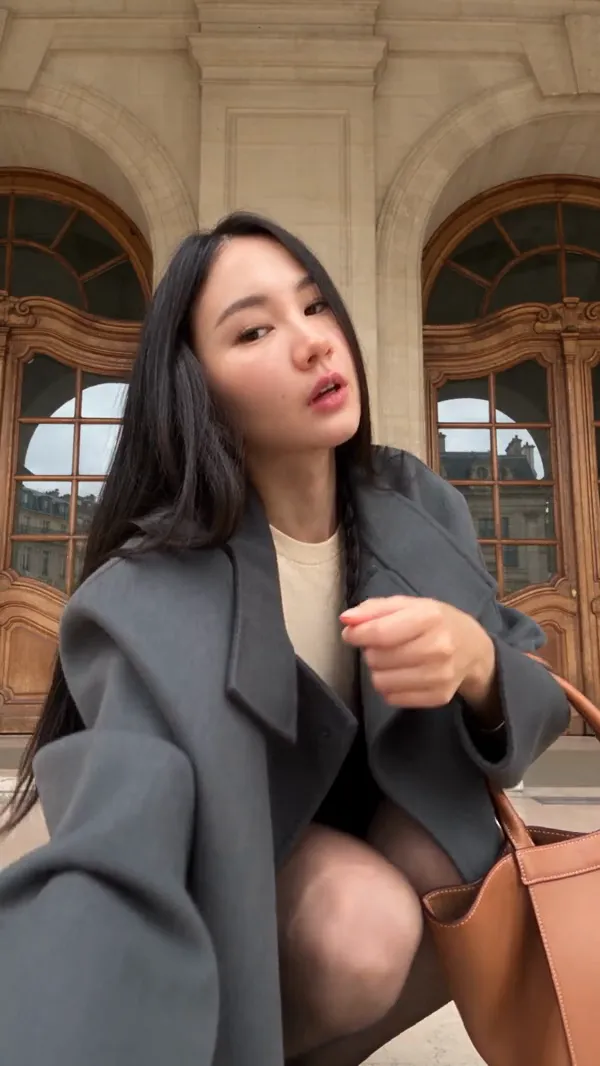
  • Bring your portrait into a fashion performance with close-up poses, turns and a walk beneath a stone arcade.
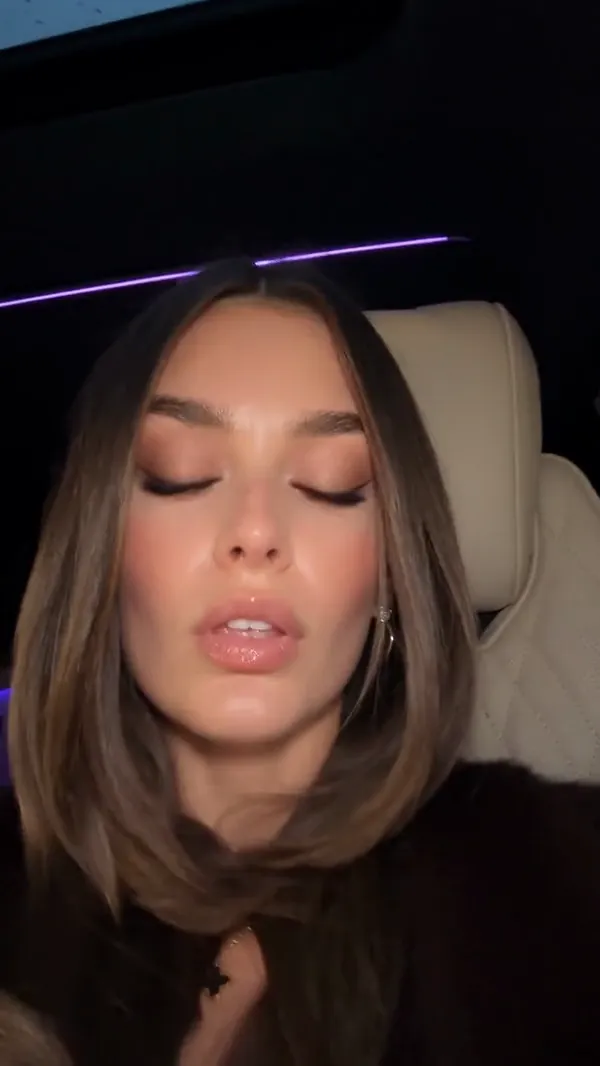
  • Animate your character through subtle head turns and expressive close-ups inside a parked car.
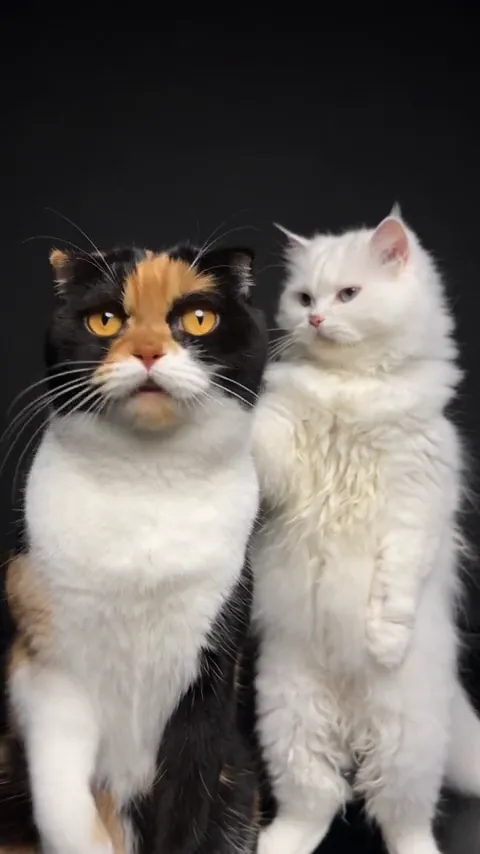
  • Bring two pet portraits into a synchronized dance with a dark studio backdrop and floor reflections.
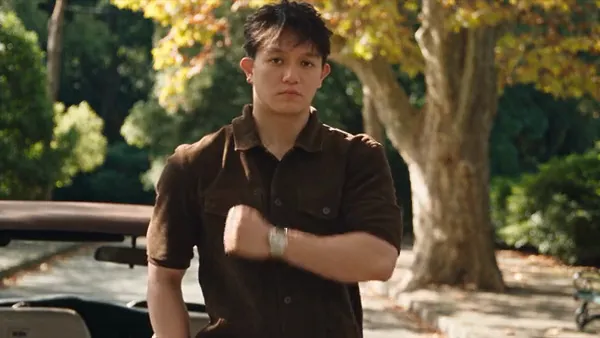
  • Recast a sequence of cinematic gestures and close-ups while preserving the source cuts, framing and performance.
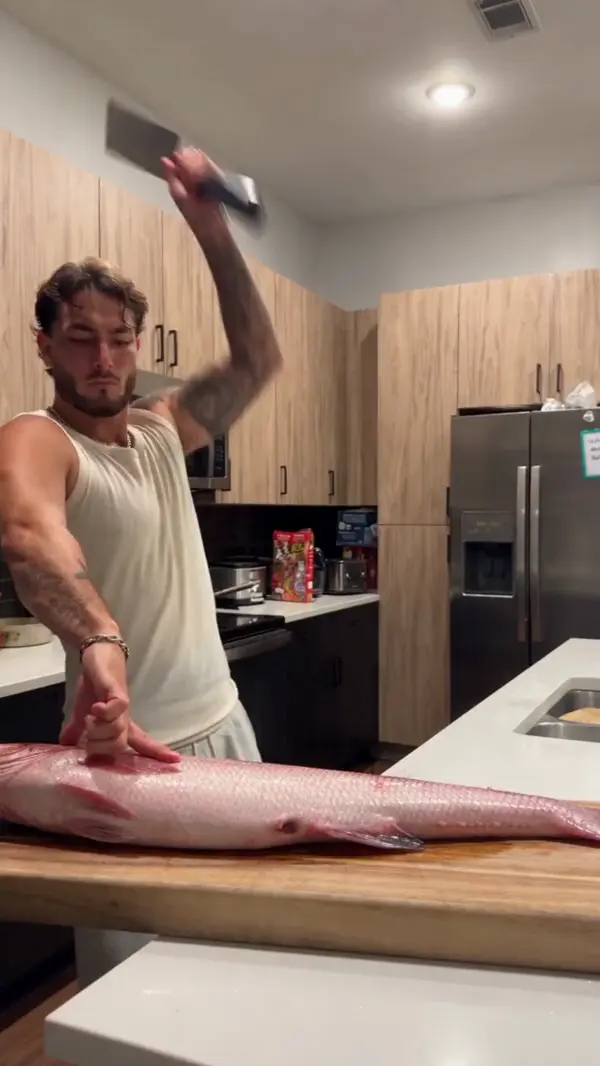
  • Map a forceful swinging motion onto a new subject preparing a large fish within a customized kitchen environment.
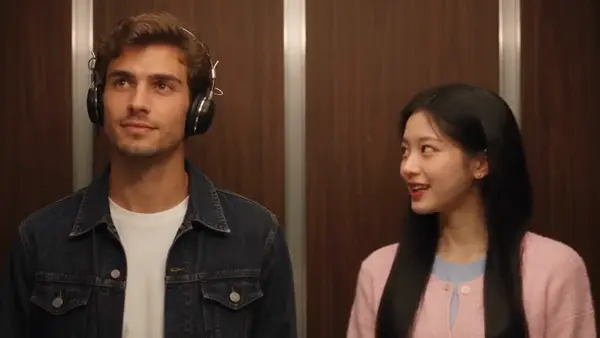
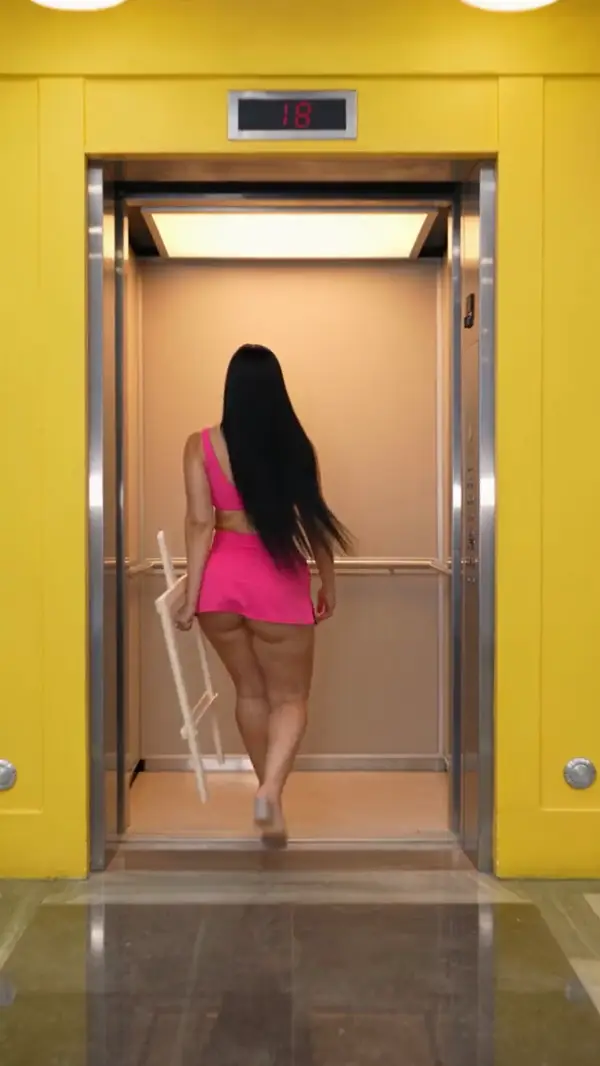
  • Two characters talk and sing inside an elevator before one exits through sliding doors while maintaining precise lip synchronization.
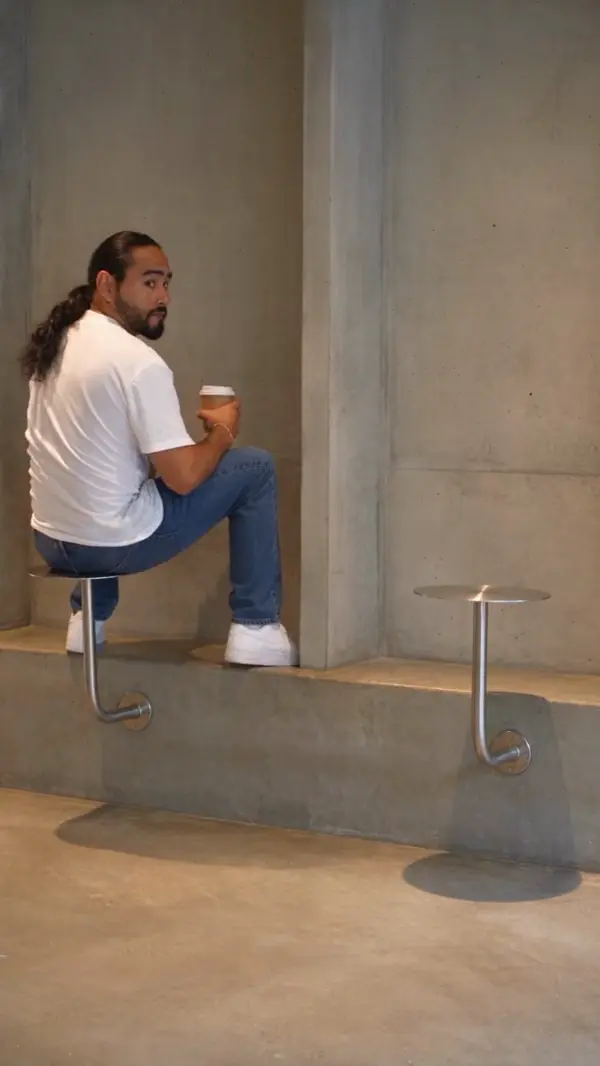
  • Place yourself in a modern industrial cafe scene where patrons sit on wall-mounted stools to enjoy their coffee.
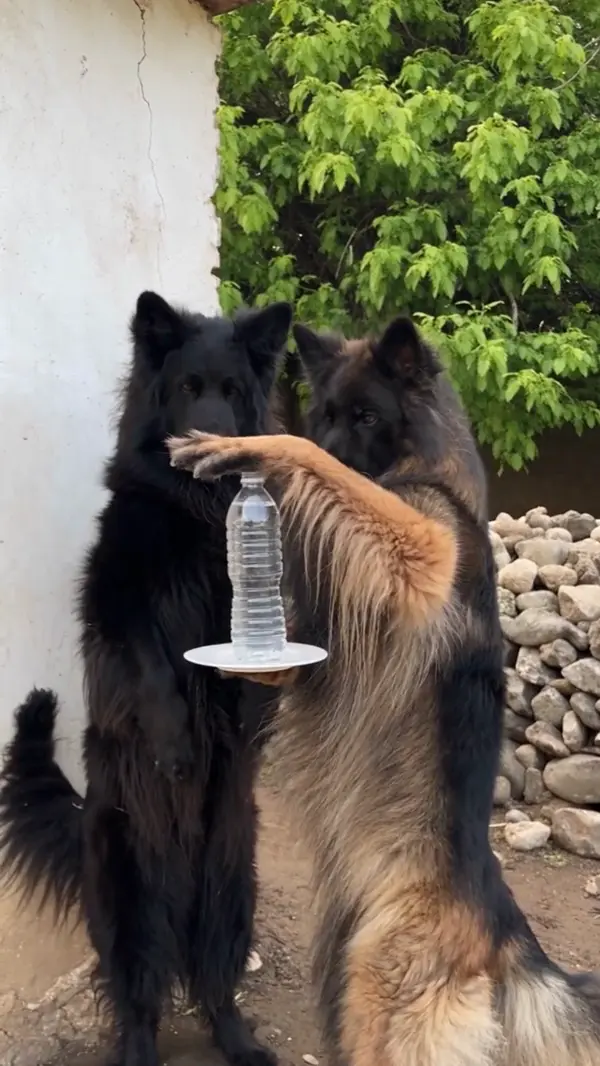
  • Transform two standing animals into different breeds that perform a humorous magic trick with a water bottle and plate.
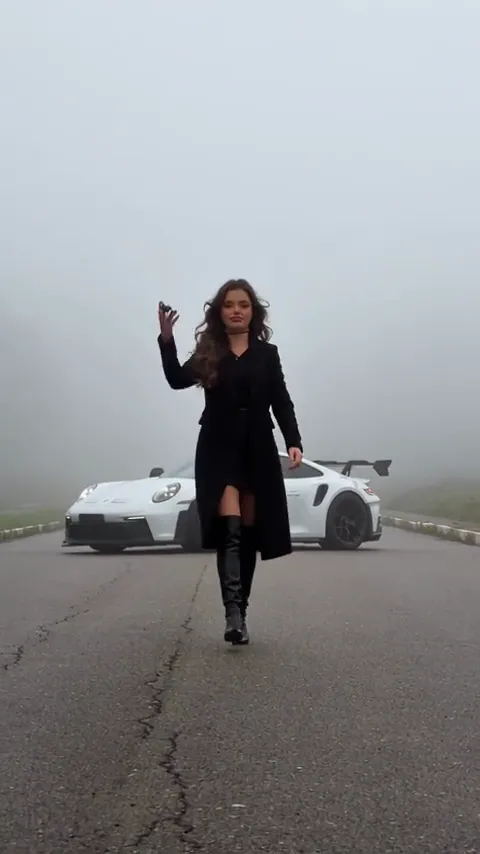
  • Walk away from an exploding sports car with a steady stride and the character from your reference photo.
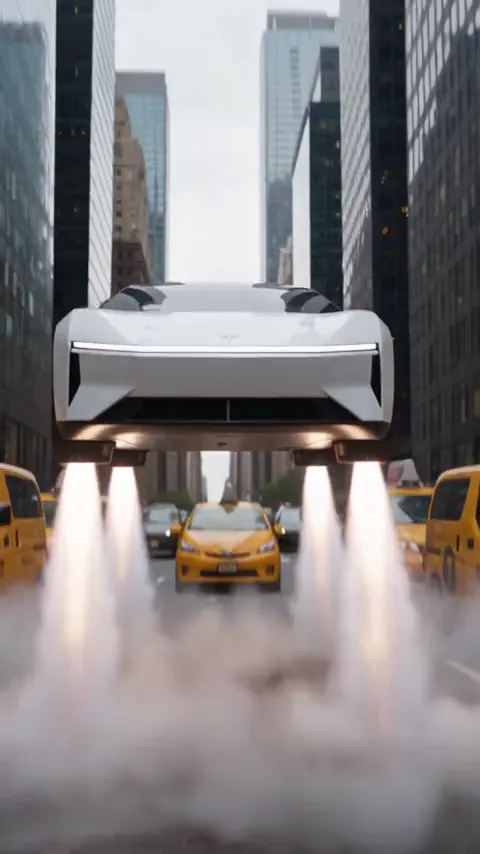
  • Send a car soaring above a city street, then reveal your characters inside the cabin.
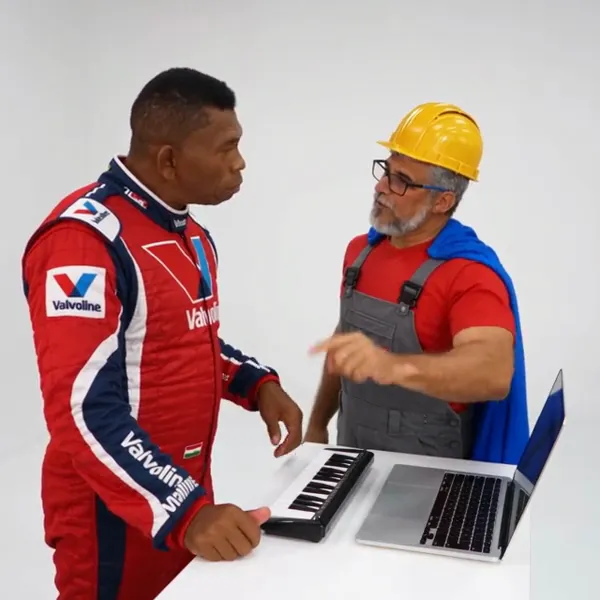
  • Cast a duo in a keyboard performance that turns into a synchronized dance on a white studio set.
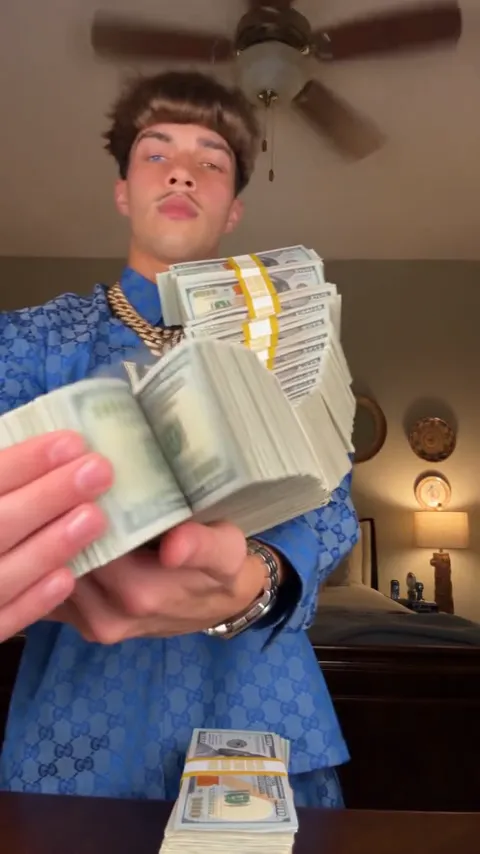
  • Recreate a cash-handling routine in which your character spreads a stack of bills into a fan.
  • Put your character into a short solo dance while keeping the original footwork, gestures and camera movements.
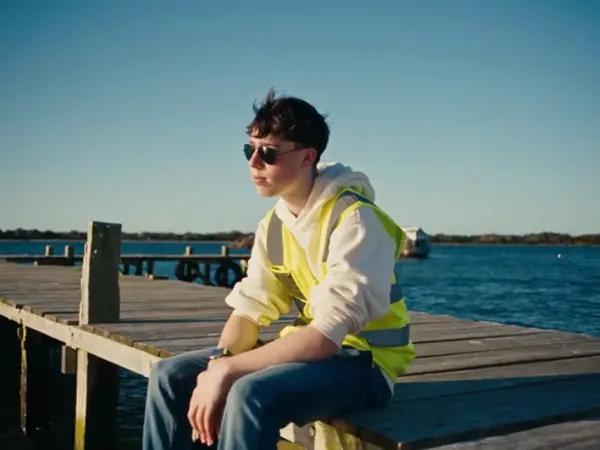
  • Cast two characters in a waterside conversation that moves from a wooden dock to the beach.
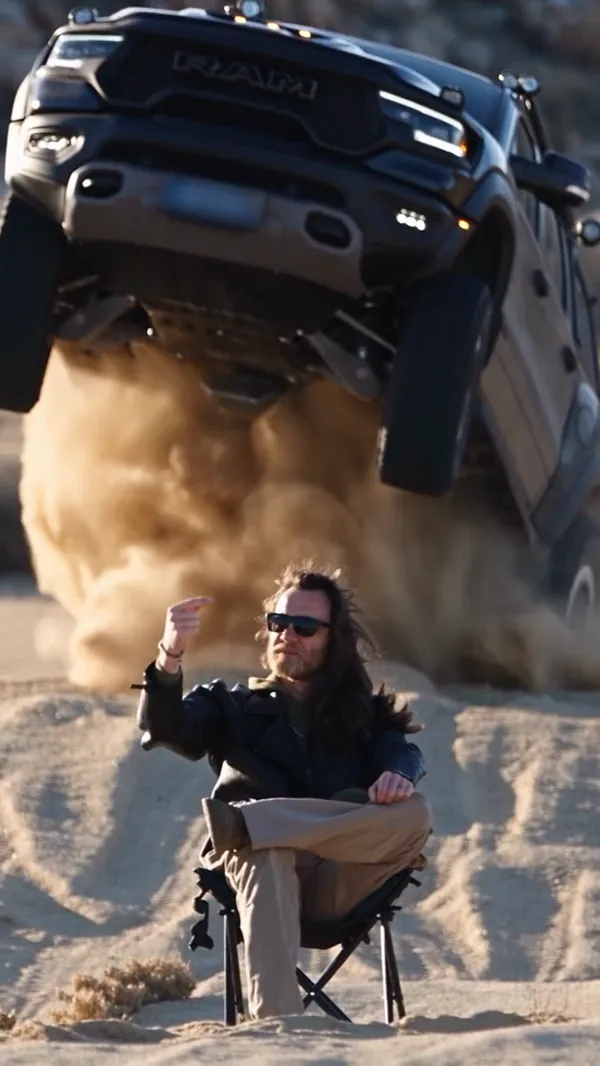
  • Place your character in the foreground of a desert stunt as an off-road truck jumps overhead.
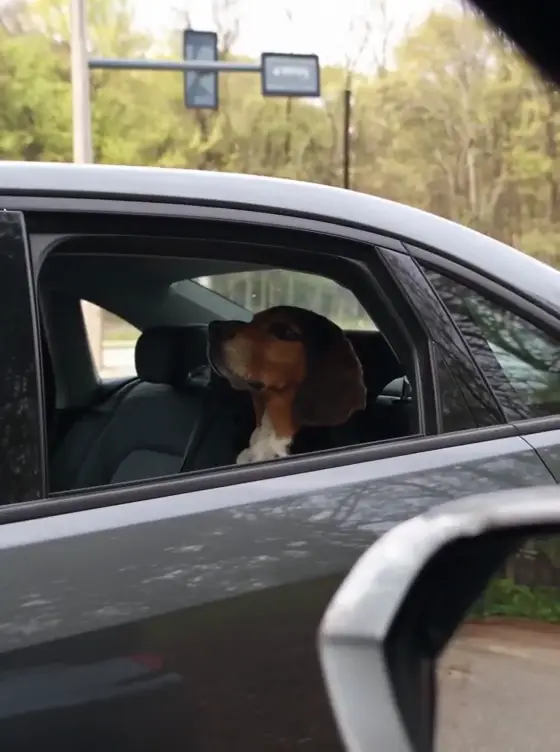
  • A dog looks out of a car window during a drive.
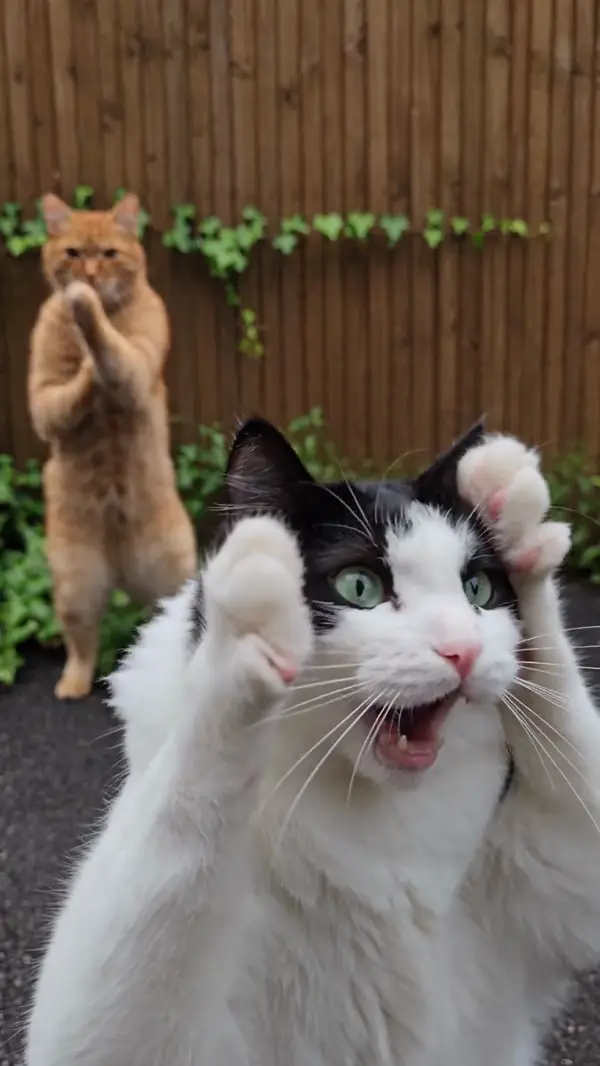
  • Two cats stand on their hind legs and perform a synchronized dance while reacting with expressive, wide-mouthed facial expressions.
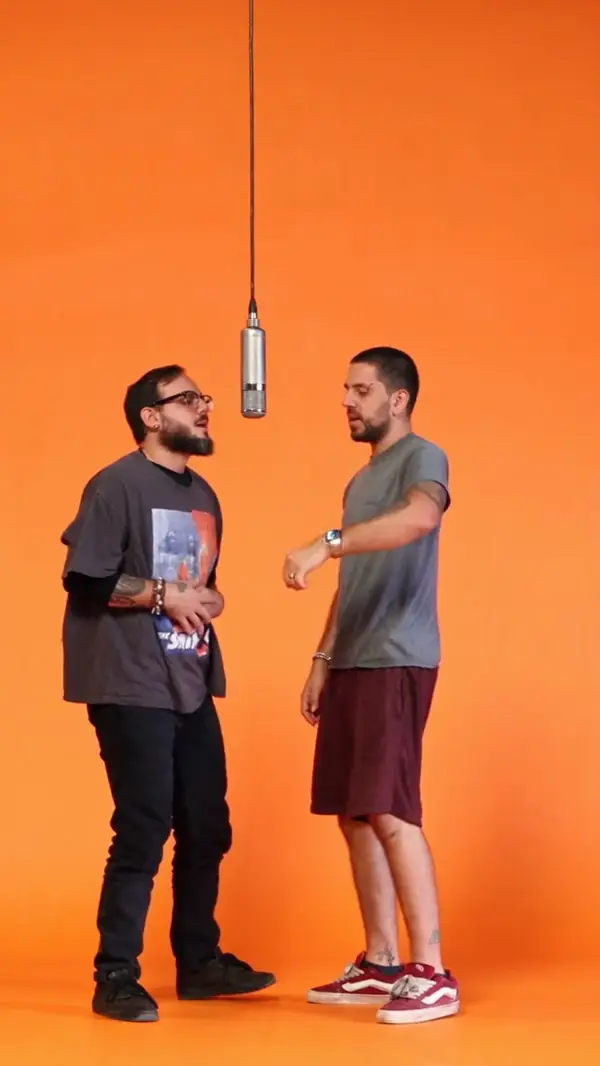
  • Two people stand in front of an orange backdrop and a studio microphone to perform synchronized hip-hop hand gestures.

What Can You Change in a Video With Genjutsu AI?

Genjutsu AI can swap characters, outfits, products, and objects in an existing video. The original motion and camera stay. Pick a case to compare the original clip with the result.

AI Character Swap

Upload a clip and one photo of the new person. Genjutsu AI replaces the person and keeps the original movement and performance. Tip: use a photo where the face and body are clearly visible.

More about AI character swap

Reference photos

Motion Transfer or Object Swap: Which Mode Should You Use?

Use Motion Transfer to rebuild the whole video around the original motion. Use Object Swap to change one target and keep everything else.

Motion Transfer

When should you use Motion Transfer?

Use Motion Transfer when you want new characters or a new look with the same movement. Genjutsu AI follows the motion, timing, and camera of the source clip and rebuilds the people and visuals from your photos. Motion Transfer works best when the subject is fully visible for most of the clip.
Object Swap

When should you use Object Swap?

Use Object Swap when only one thing should change. Genjutsu AI replaces the selected person, outfit, product, or object and keeps the background and camera as close to the source as possible. Object Swap is most accurate when the target is large and visible in most frames.

Motion Transfer and Object Swap compared
ModeMotion TransferObject Swap
Best forA new character or a new look with the same movementChanging one person, outfit, product, or object
What changesPeople and visuals, rebuilt from your reference imagesOnly the selected target
What staysMotion, timing, and camera movementBackground, motion, and camera movement
Source clip4–30 seconds, MP4 or MOV, up to 100 MB4–30 seconds, MP4 or MOV, up to 100 MB
Reference imagesUp to 20 photosUp to 20 photos
Output480P to 1080P480P to 1080P
PricingOne-time credit packs, charged per second of videoOne-time credit packs, charged per second of video

See AI character swap examplesSee credit pack prices

How Do You Use Genjutsu AI?

Genjutsu AI needs one source video and at least one reference photo. A prompt is optional. Most videos take four steps.

  1. Upload a Source Video

    Upload the clip you want to change, or pick one from the community library.

  2. Add Reference Photos

    Add photos of the characters, outfits, or products you want in the video.

  3. Add Instructions if Needed

    Say what to replace, change, or keep. Skip this step when one photo clearly matches one subject.

  4. Choose Quality and Generate

    Pick a quality and generate. Genjutsu AI shows the credit cost before you start.

What Videos and Photos Work Best With Genjutsu AI?

Genjutsu AI works best with short, clear clips and clear reference photos. These are the limits and the factors that change the result.

  • Source video

    MP4 or MOV, 4 to 30 seconds long, up to 100 MB. The generated video has the same length as the source.

  • Reference photos

    Up to 20 photos in JPG, PNG, WebP, or BMP. Each photo should show one character, outfit, or product clearly.

  • Output quality

    Choose 480P, 720P, or 1080P for each video. Higher quality uses more credits per second.

  • Credit cost

    A video uses 20 credits per second of source video at 480P, 40 at 720P, and 140 at 1080P. A 5-second 480P video costs about $1.25.

  • Best results

    The subject is fully visible, evenly lit, and not covered by other objects for long. One clear subject per reference photo works best.

  • Limits

    Genjutsu AI follows the source motion closely but not frame for frame. Very fast motion, tiny subjects, and heavy occlusion give less accurate results.

Does Genjutsu AI Need a Subscription?

No. Genjutsu AI uses one-time credit packs from $4.99, and credits never expire. Unlike a monthly AI video subscription, you pay only for the videos you generate.

Does Genjutsu AI Need a Subscription?
TopicGenjutsu AI creditsMonthly subscription
How you payOne-time credit packs, from $4.99A fee every month, whether you create or not
Unused balanceCredits never expireUsually tied to the billing cycle
Features and qualityEvery pack works with both modes and 480P to 1080PPlan tier decides what you can use
Cost per videoAbout $1.25 for a 5-second 480P video, shown before you generateSpread across the monthly fee
StoppingNothing to cancelCancel before the next renewal
See credit packs

Subscription terms differ between services, so check the plan you are comparing.

Genjutsu AI Video FAQs

Direct answers about Genjutsu AI pricing, credits, file limits, and results.

Genjutsu AI is an online video tool that swaps the characters, outfits, products, or objects in an existing video using your reference photos. It keeps the original motion and camera. Genjutsu AI has two modes: Motion Transfer rebuilds the whole video, and Object Swap changes one selected target.

Still have a question?

Email us and we will get back to you.

Email support

Pick a Motion and Make It Yours

Start from the community library or upload your own clip. Pay only for the videos you create.
See pricing
  • Transport your character through a series of themed elevator stops as their accessories and surroundings change with every floor.
  • Showcase your pet from multiple angles and distances with rhythmic cuts and a dramatic final close-up.
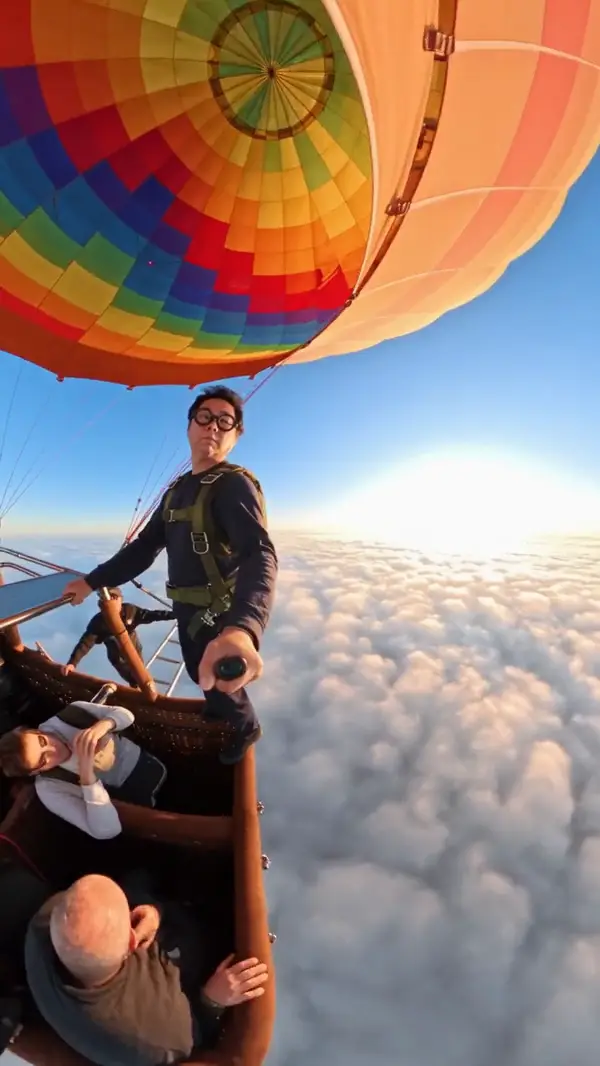
  • Transform a portrait into an action sequence where the subject leaps from a hot air balloon to skydive through the clouds.
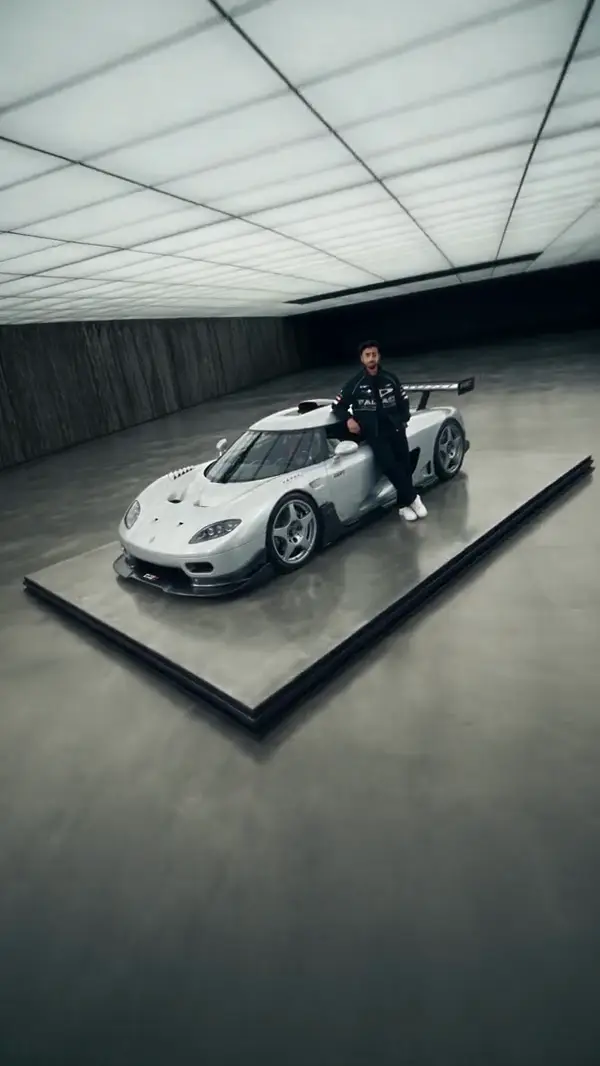
  • A dynamic camera orbits a vehicle and subject, featuring smooth transitions between detailed close-ups and wide perspectives in a studio.